What's a decomp Switch port?
A fan-made decompilation port compiled to run natively on a modded Nintendo Switch.
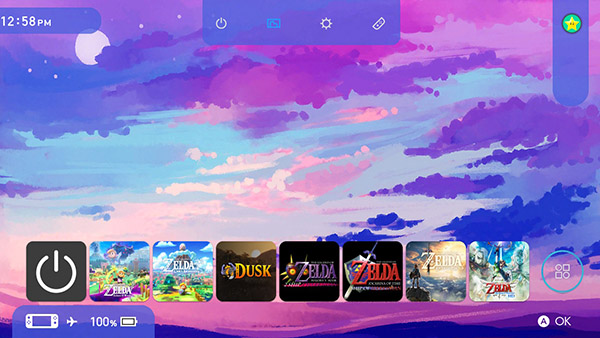
Decompiling a game means reverse-engineering the code to bring it to a modern platform. It allows the game to run natively on the device instead of just emulating it. Since decomp ports are unofficial ports, users are required to supply their own ROM containing original game assets.
These games listed below aren't officially released on the Switch, but decompiled and ported by the community for the Switch. Couple of ports are available but these are my favourite.
TABLE OF CONTENTS
- Ship of Harkinian - The Legend of Zelda: Ocarina of Time (N64/GC)
- 2 Ship 2 Harkinian - The Legend of Zelda: Majora's Mask (N64/GC)
- Dusklight - The Legend of Zelda: Twilight Princess (GC)
NOTE
You must have your own copy of the game.
Ship of Harkinian - The Legend of Zelda: Ocarina of Time (N64/GameCube)

1. Obtain ROM and verify
Head over to SoH Compability Checker to verify your ROM dump
2. Prepare the asset files on your PC
Run one of the PC releases that corresponds to the latest Switch release version to generate an oot.o2r and/or oot-mq.o2r file. After launching the game on PC, you will be able to find these files in the same directory as soh.exe or soh.appimage. On macOS, these files can be found in /Users/<username>/Library/Application Support/com.shipofharkinian.soh/
3. Setup on Switch
- Download and extract the latest Switch release that contains the soh.nro and soh.o2r files
- Copy
oot.o2r,oot-mq.o2r(optional Master Quest version),soh.nroandsoh.o2rtosdmc:/switch/soh/folder - Launch via your homebrew loader (Game+R)
4. Add mods/texture packs
I used OoT_Reloaded_v11.0.0_HD from here and S_Djipis3DS_Background_Textures from this postPlace .o2r and/or .otr texture packs inside sdmc:/switch/soh/mods/
In-game, enable texture pack by pressing Minus (-) button > Settings > Mod Menu > check Enable Mods. If you wish to rearrange mods, press Edit > press up or down arrows on the mods you wish to rearrange > press Apply & Close > Choose Close to close the game and apply changes then relaunch the game
2 Ship 2 Harkinian - The Legend of Zelda: Majora's Mask (N64/GameCube)

1. Obtain ROM and verify
Head over to 2Ship Compatibility Checker to verify your ROM dump
2. Prepare the asset files on your PC
Run one of the PC releases that corresponds to the latest Switch release version to generate mm.o2r file. After launching the game on PC, you will be able to find this file in the same directory as 2ship.exe or 2ship.appimage
3. Setup on Switch
- Download and extract the latest Switch release that contains the 2ship.nro and 2ship.o2r files
- Copy
mm.o2r,2ship.nroand2ship.o2rtosdmc:/switch/2ship/folder - Launch via your homebrew loader (Game+R)
4. Add mods/texture packs
I used MM_Reloaded_v11.0.2_HD from here
Place .o2r and/or .otr texture packs inside sdmc:/switch/2ship/mods/
In-game, enable texture pack by pressing Minus (-) button > Enhancements > Graphics > check Use Alternate Assets > press Quit button on top right corner > Choose Quit to close the game and apply changes then relaunch the game
Dusklight - The Legend of Zelda: Twilight Princess (GameCube)

1. Obtain ROM and verify
Either of these:
GameCube ROM USA SHA-1 hash = 75edd3ddff41f125d1b4ce1a40378f1b565519e7
GameCube ROM EUR SHA-1 hash = 2601822a488eeb86fb89db16ca8f29c2c953e1ca
2. Setup on Switch
- Download dusk.nro from here
- Copy
dusk.nrotosdmc:/switch/dusk/folder on your SD card - Copy ROM on any folder on SD card. I placed mine on
sdmc:/roms/ - Launch via your homebrew loader (Game+R)
- On first launch, select your game dump. Locate where you placed your ROM
- Press Play
3. Overclock your Switch for a smoother gameplay
I used Horizon-OC and used the Automatic Installation from this guide
Now CPU, GPU and RAM tunings will vary depending on your Switch version. I have a Switch Lite (Mariko) and based from this guide, this is my App Profile setting:
For Handheld, PD Charger, USB Charger:
GPU: 768 Mhz
Memory: 2133 Mhz
I used App Profile and not Global Profile because I want to apply these overclock settings on specific games only
Tweaking my RAM configuration is far too complicated for me. I have a Samsung AM-MGCJ which is B Tier according to the guide. I'm planning on digging deeper into this topic soon, but right now I'm content playing my games the way they are.
4. Add mods/texture packs
I used Henriko Magnifico's 1080p HD texture pack with Switch buttons UI. I think 4k is overkill for the Switch
Place GZ2 folder inside sdmc:/dusk/texture_replacements/ folder
Henriko Magnifico's Dusk/Courage Reborn texture pack (1080p) (v3.0c) [Link]
Delete UI folder and replace it with this UI folder if you wish to use Switch coded buttons on the screen
SWITCH Buttons UI Textures (PC/Mac/Linux) (v2.0) [Link]
Create NRO to NSP forwarders

So an app shortcut will be on your home screen.
2. Fill out details
3. Install NSP file on your Switch using DBI or your chosen installer
Custom Cover Arts for Switch Ports / Homebrew Games
SteamGridDB is a great place to grab our fav game cover arts. Though, if we're gonna use their cover arts on Switch, we have to edit them to make them fit.
Ship of Harkinian Cover Art

Cover art by Argorath. Edited to make it square. Download here.

2 Ship 2 Harkinian Cover Art
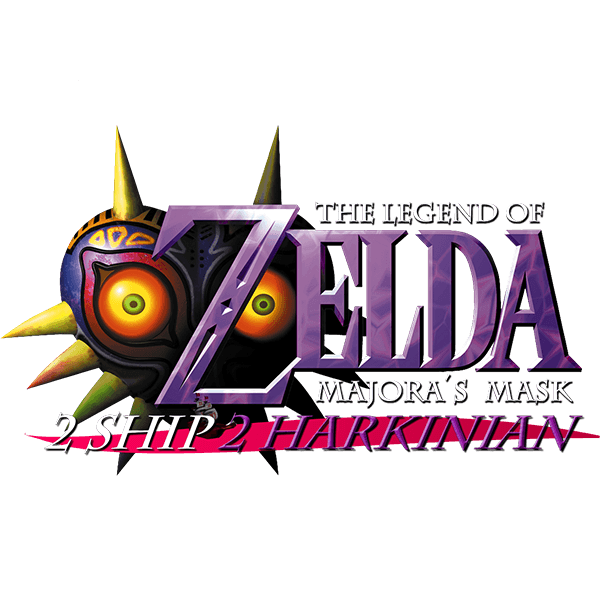
Cover art by FloweyGaming577. Edited to make it square. Download here.
